Harvestrolley Docs Last updated: 2022-11-21

This page contains the necessary documents for the usage of Harvestrolley.

Login
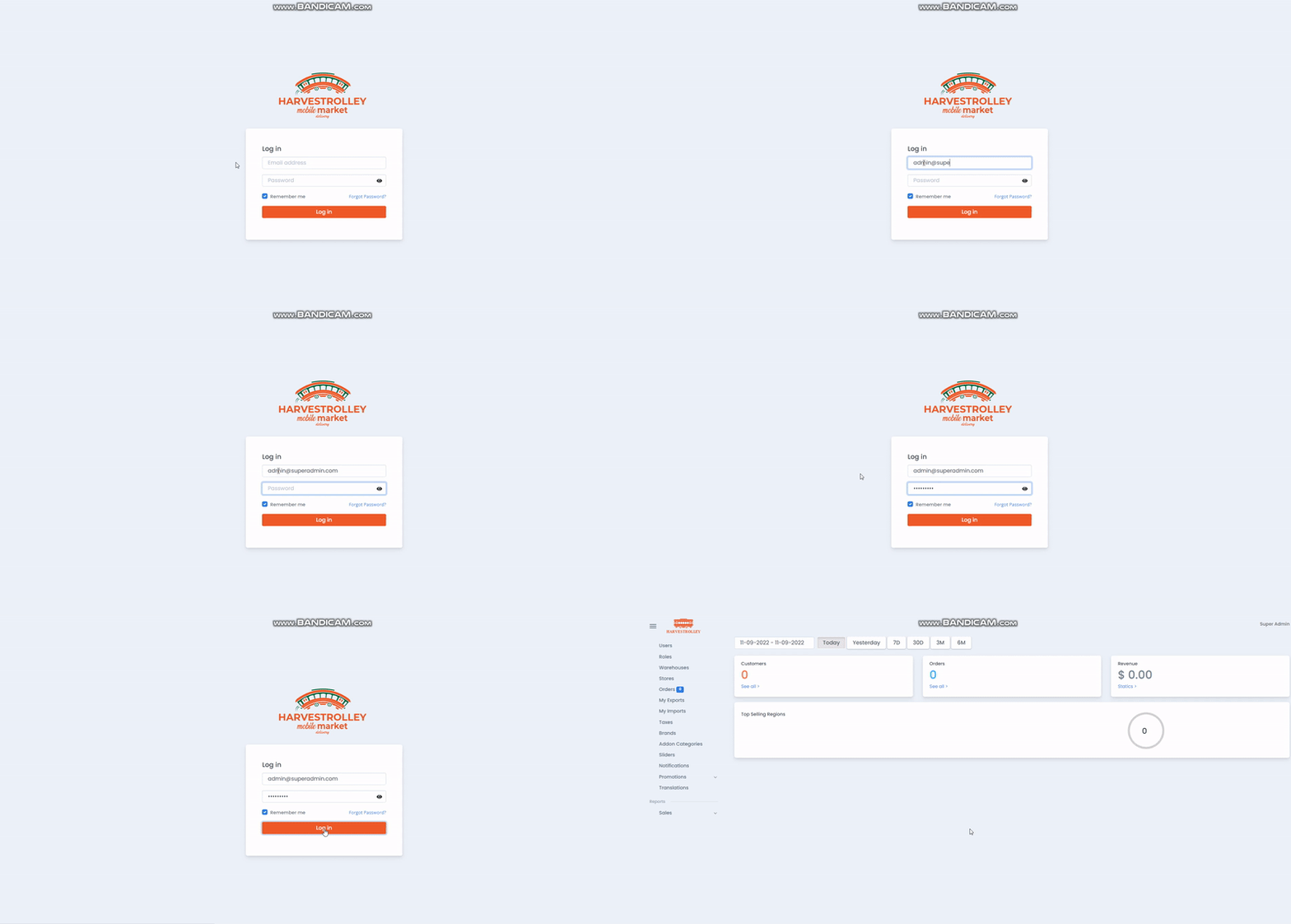
Go to Harvestrolley website


Enter your email address in the email address field.

Password is entered in the password field.

If you check the Remember me box, your information will appear on the screen the next time you log in.

If you forgot your password, click on the Forgot Password?

You can log in by clicking the Log in button.

Forgot Password?

You can learn how to reset your password from the video below.

The actions in this video will send your password reset link to your e-mail address.


Users

In the Users menu, click the “New User” button to add a new user.

In the window that opens, the user's information is entered and a suitable role for the user is selected from the “Select Role” section.

After all fields are filled, the “Create User” button is clicked.


You can filter users according to certain criteria in the “Filter” menu.

Like Name, Surname, Email, Phone etc.

After the desired filters are applied, the “Filter” button is clicked.


When the “Export” button is clicked, “Successfully Exported” text will appear on the screen.

You can go to My Exports menu to get your User Export file.

Processing in the “My Exports” menu will be finished in a brief time.

After success, you can download it as Excel.

You can add or remove column information from the list using the “Columns” button.

Your User Export file will be sent to your e-mail address after the process is completed.


Users are listed on the screen according to the selections you make from the “Columns” button.


User Delete

To delete a user, Click the “Delete” button.

Do you want to delete this item?

When the question is answered with Delete, the user is deleted from the system.


User Info

When a user clicks on the Users list, a screen opens with information on which a note can be added to the user.

The information can be edited, even the user can be deleted, and the user's logs, orders, addresses are displayed.

You can learn how to use it in the video below.


Roles

You can create a new role from the Add Role window by clicking the “New” button.

Enter the name of the role in the Name field.

In the Periscope column, there are 3 options as Admin>Warehouse>Store. Authorizations and panel change according to the selected scope.

Select the permissions of the role in the “Permissions” column.

You can edit or delete the role by clicking the “Actions” button.

You can watch it in the video below.


How is a role edited?


How to delete a role?


Warehouses


How to create a new warehouse by clicking the “New” button?

How to delete and edit warehouse?

Stores


Columns to be displayed in the list can be selected or removed by clicking the “Columns” button.

You can add a new store from the “Add Store” column.

When trying to add an Add Store, first a logo and current cover image are added.

Store name service and delivery charges are added.

You can see on the map by selecting the number of miles in which the distribution will be made in the Delivery Radius field.

Store working hours and days can be added from the working hours section.

You can access the store list by clicking “Stores” from the menu.

Orders


You can see the orders of all stores in the “All” tab.

You can view pending orders in the “Pending” tab.

You can see the orders on the way in the “On The Way” tab. When you click on the order, you can see the order detail.

You can view completed orders in the “Completed” tab.

You can see the order details of the canceled orders in the “Cancelled” tab.

You can add or remove columns from the list using the “Columns” button.

You can select the store from the Select section on the top right and see the order information of the selected store.

The list can be output by clicking the “Export” button.

You can view users who have an Annual Free Delivery subscription by clicking the “Free Deliveries” button.

My Exports


How to get export?

When are the processing exports completed? - Job completion time may take up to 2 hours depending on the export size received.

How to download Export? - You can click on export which is in Success status and download it as excel.

My Imports


How to import “My Imports”?

If you have previously imported any product etc., it will appear in this field.

Taxes


How to add tax?

How to edit and delete Tax?

Brands


How to add a brand?

How to edit and delete Brand?

Addon Categories


Addon Category creation, editing and deletion.

Sliders


Creating, editing, and deleting Sliders.

Notifications


Creating, editing, and deleting Notifications.

You can send an immediate or future-dated notification by saying future or now.

You can send notifications to all users or to a specific user group.

Promotions


You can see the list of existing campaigns by selecting Promotions/Campaigns from the left menu.

You can add a new campaign by clicking the “New” button.

You can add or remove columns from the list using the “Columns” button.

You can access the campaign edit page by double-clicking on the campaign.

You can see the list of available coupons by selecting Promotions/Coupons from the left menu.

You can add a new coupon by clicking the “New” button.

You can add or remove columns from the list using the “Columns” button.

Reports


How to get reports?

Top selling products

Top selling categories

Top selling stores

Top selling trolleys

You can examine and export the list by applying filters (date, store, etc.), sorting (clicking on the headings on the column) on the relevant pages.

Warehouse Manager

You can find all the features related to Warehouse management below.

Messages

In the Messages column, you can see all the messages you received from the customer.

You can provide feedback in the “Type your message” section.


Teams

You can see all the teams in the “Teams” column.

You can add new teams from the “New” column.


Stores

In the Stores column, you can see all the stores connected to the warehouse.

You can see products, categories, orders from the “Operations” column.

You can remove the store by saying delete from the “Operations” column.

You can add or remove the columns you want to see in the list by clicking the “Columns” button.

You can add a new store from the “Add Store” Button.

You can search by store name and store type from the “Filter” column.

You can print the list by clicking the “Export” button.

You can see the edit store section by double-clicking on the store you want to edit.


Service Requests

You can access all requests in the Service Requests column.

You can add or remove the columns you want to see in the list by clicking the Columns button.


My Exports

You can view and download the files of the outputs you have received in My export.

You can see the date and time it was added in the “Date” column.

You can see if it is active in the “Status” column.


My Imports

You can see the date and time it was added in the Date column.

You can see if it is active in the “Status” column.


Promotions

You can see the list of existing campaigns by selecting Promotions/Campaigns from the left menu.

You can add a new campaign by clicking the “New” button.

You can add or remove columns from the list using the “Columns” button.

You can access the campaign information by double-clicking on the campaign.

You can access the campaign edit page by double-clicking on the campaign.

You can see the list of available coupons by selecting Promotions/Coupons from the left menu.

You can add a new coupon by clicking the “New” button.

You can add or remove columns from the list using the “Columns” button.


Store Manager

You can find all the features related to store management below.

My Store

You can change the name of the store in the Name field.

You can write the store description in the Description field.

The delivery fee can be changed in the Delivery Fee field.

The service fee can be changed in the Service Fee field.

The minimum basket amount can be determined from the Minimum Cart Total field.

You can see the store mail in the Email Notification field.

In the Contact Information section, you can view and edit the Store Manager information.

In the Active field, store active/disable selection can be made.

You can see and edit the Store address in the Address field.

You can see the delivery circumference (miles) in the Delivery Radius field.

You can see and edit the store's working hours/days in the “Working Hours” column.


Drivers

A new driver can be added by clicking the “New” button in the Drivers list.

You can edit it in the “Actions” column.

You can delete drivers in the “Actions” column.


Teams

You can add new teams from the “New” column.


Pickers

A new picker can be added by clicking the “New” button in the Pickers list.

You can edit it in the “Actions” column.

You can delete pickers in the “Actions” column.


Categories

You can collapse the categories by clicking the “Collapse All” button.

You can expand the categories by clicking the “Expand All” button.

You can add a new category by clicking the “Add Category” button.

You can see the sub-categories of the category with the plus (+) sign next to the category.

You can go to the product list of the selected category (subcategories) by clicking the Items button.

You can see all the products of the category in the “All” tab.

You can see the active products in the “On Sell” tab.

You can see the products that do not have stock in the “Out Of Stock” tab.

You can see the inactive products in the “Not Available” tab.

You can see damaged, returned, or expired products in the “Shrink Products” column.

In the Product Note column, you can see the list of products with problems reported by the picker for the product. (Ex: wrong image)

You can set the Active/Deactive part of the category with the help of the button on the right side of the category.

You can delete or edit the category by clicking the ellipsis button (...).


Products

You can add products in 3 separate ways by clicking the “New” button. By selecting a previously saved product from the catalog, you can add a specific product to which you can add information from scratch, or you can add a bulk product with the help of excel.

You can see all products in the All tab.

You can see the active products in the On Sell tab. By clicking on the product, you can go to the product edit page and update the product information. The parts you can edit in the Product Details field are; Name, Description, Trim Barcode, Category, List, Select List, Tax Rate, Tax, Addon Categories, Select Addon Category, Search Tags, Search Tags, SKU, Substitute Product, Substitute Barcode, Featured Product, Active You can change the price of the product in the Pricing & Stock field, and the parts you can edit are: Stock Quantity, Alert, Track Quantity, Continuous selling when out of stock, Is Weighted, Sold By, Max Quantity per Order, Unit Type, Piece, Unit Price, Average Packet Weight

Pricing & Stock alanında ürün fiyat değişikliği yapabilirsiniz, editleyebileceğiniz kısımlar ise;Stock Quantity,Alert,Track Quantity,Continue selling when out of stock,Is Weighted,Sold By,Max Quantity per Order,Unit Type,Piece,Unit Price,Average Packet Weight

You can make multiple choices for the options in the Options field. The selected options will appear as information in the product in the app.

You can see the products that do not have stock in the “Out Of Stock” tab.

In the Not Available tab, you can see the products whose status is inactive.

You can see damaged, returned, or expired products in the “Shrink Products” column.

In the Product Note column, you can see the list of products with problems reported by the picker for the product. (Ex: wrong image)


My Exports

You can view and download the files of the outputs you have received in My export.

You can see the dates added in the Date column.

You can see the process status in the Status column.


My Imports

You can see the imports on excel in the “Orders Import” column.

You can see the dates added in the “Date” column.

You can see the process status in the “Status” column.

You can see the data status in the “Detail” column.


Taxes

The list of taxes can be accessed by clicking Taxes from the menu.

You can add tax by clicking the “New” button.

The tax name is entered in the Name field.

In the Tax Percent field, the percentage of the tax is entered.

The active state is selected and saved by clicking the save button.

You can edit or delete the name and tax percent from the Actions column.


Brands

You can add brand in the “New” button.

You can edit or remove added brands from the “actions” column.


Addon Categories

Addon Category list is displayed by clicking Addon Categories from the menu.

You can add or remove columns from the list by clicking the Columns button.


Orders

You can see all orders in the All tab.

You can see the pending orders in the Pending column.

You can see accepted orders in the “Accepted” tab.

You can see the orders on the way in the “On The Way” tab. When you click on the order, you can see the order detail.

You can see completed orders in the “Completed” orders tab.

You can see the order details of the canceled orders in the “Cancelled” orders tab.

You can see the list of order reviews in the “Order Reviews” tab.


Driver

Driver functions are described here.

Information

When you log in to Harvestrolley Driver App with your driver account, you can see the orders that are assigned to you and ready to deliver. You can see the order details (Customer Name, Customer Address, Order Notes, items of order, etc.) You can see the item detail.

When you accept the order by clicking the “Accept” button, the button will be the “Complete” button. When you click the “Complete” button, you will be redirected to taking a photograph page. When you complete the delivery, you must take a photograph.


Picker

Picker functions are described here.

Information

When you log in to Picker App, you can see the orders that you can pick and prepare. When you click the order, you can see order details (Customer Name, Delivery time and Type, Order Instructions, Products, etc.)

*If you need to see the order details again, you can see it by clicking the “i” button, on the right side of page. *If you need help, you can go to the help page by clicking “Help” button on the right side of top of the homepage.

You can see the item detail information (Full Name, Full Product, Image etc.) by clicking the product. You can see the image in full screen and zoom in to the image.

If you need to edit a product’s unit price, you can edit the unit price by clicking the “Update Unit Price” button, at the product detail page. You can prepare the orders by scanning products or entering barcodes manually. You must click the “Scan” button and scan the product’s barcode or enter the barcode manually. When you scan the product, the product will be moved to “Done” tab from “Picking” tab.

If there is no product in the store, you can return the product on the order. If you return product(s), order’s amount will be updated. If you return the product and then you can find the product, you can retrieve the return product by clicking the green ⬅️button on the “Return Items” tab.

Then the product will be moved to “Picking” tab from the Return Items tab. When you prepare the order, you can complete the process by assigning the order to the driver or Door dash. You can press the “Complete” button on the bottom of “Done” tab and go to complete assign page. You can assign the order to Driver of Store or Door dash. If you are a picker and driver at the same time, you can assign an order to yourself and deliver the order. But you must manage the delivery process at Harvestrolley Driver App.

You can manage your account from the Account page. You can update your name, surname, email, phone number and your password from this page.


Resources

You can find all the resources and their download links here.

Admin Video Resources

Download

Warehouse Manager Video Resources

Download

Store Manager Video Resources

Download

Driver Video Resources

Download

Picker Video Resources

Download

Trolley Manager

You can find all the features related to trolley management below.

My Store

You can change the name of the store in the Name field.

You can write the store description in the Description field.

The delivery fee can be changed in the Delivery Fee field.

The service fee can be changed in the Service Fee field.

The minimum basket amount can be determined from the Minimum Cart Total field.

You can see the store mail in the Email Notification field.

In the Contact Information section, you can view and edit the Store Manager information.

In the Active field, store active/disable selection can be made.

You can see and edit the Store address in the Address field.

You can see the delivery circumference (miles) in the Delivery Radius field.

You can see and edit the store's working hours/days in the “Working Hours” column.


Drivers

A new driver can be added by clicking the “New” button in the Drivers list.

You can edit it in the “Actions” column.

You can delete drivers in the “Actions” column.


Teams

You can add new teams from the “New” column.


Pickers

A new picker can be added by clicking the “New” button in the Pickers list.

You can edit it in the “Actions” column.

You can delete pickers in the “Actions” column.


Categories

You can collapse the categories by clicking the “Collapse All” button.

You can expand the categories by clicking the “Expand All” button.

You can add a new category by clicking the “Add Category” button.

You can see the sub-categories of the category with the plus (+) sign next to the category.

You can go to the product list of the selected category (subcategories) by clicking the Items button.

You can see all the products of the category in the “All” tab.

You can see the active products in the “On Sell” tab.

You can see the products that do not have stock in the “Out Of Stock” tab.

You can see the inactive products in the “Not Available” tab.

You can see damaged, returned, or expired products in the “Shrink Products” column.

In the Product Note column, you can see the list of products with problems reported by the picker for the product. (Ex: wrong image)

You can set the Active/Deactive part of the category with the help of the button on the right side of the category.

You can delete or edit the category by clicking the ellipsis button (...).


Products

You can add products to the Trolley by clicking the “New” button.

You can see the active products in the On Sell tab. By clicking on the product, you can go to the product edit page and update the product information. The parts you can edit in the Product Details field are; Name, Description, Trim Barcode, Category, List, Select List, Tax Rate, Tax, Addon Categories, Select Addon Category, Search Tags, Search Tags, SKU, Substitute Product, Substitute Barcode, Featured Product, Active You can change the price of the product in the Pricing & Stock field, and the parts you can edit are: Stock Quantity, Alert, Track Quantity, Continuous selling when out of stock, Is Weighted, Sold By, Max Quantity per Order, Unit Type, Piece, Unit Price, Average Packet Weight

Pricing & Stock You can change the product price in the field, the parts you can edit are;Stock Quantity,Alert,Track Quantity,Continue selling when out of stock,Is Weighted,Sold By,Max Quantity per Order,Unit Type,Piece,Unit Price,Average Packet Weight

You can make multiple choices for the options in the Options field. The selected options will appear as information in the product in the app.

You can see the products that do not have stock in the “Out Of Stock” tab.

You can press the “Complete” button at the end of the “Done” tab and it will take you to the "Complete Assign"

You can see damaged, returned, or expired products in the “Shrink Products” column.

In the Product Note column, you can see the list of products with problems reported by the picker for the product. (Ex: wrong image)

The Add Invoice section is populated from New.

In the Add Invoice section, an invoice picture will be added first.

Then select the date, that you added informations.

To add products to the Trollley inventory, you can search the products that you want to add.Then click Add Product to open product details.You need to fill stock and select category.Then click Add.After that the invoice amount will be adjusted.To save products that you add before by clicking save button which located in the upper right corner.

From the Shrink Products section, click on the products button and then click on the three-point button next to the product to be returned The Add Shrink section is set to the Quantity section. Enter the Reason section. Press save.

My Exports

You can view and download the files of the outputs you have received in My export.

You can see the dates added in the Date column.

You can see the process status in the Status column.


My Imports

You can see the imports on excel in the “Orders Import” column.

You can see the dates added in the “Date” column.

You can see the process status in the “Status” column.

You can see the data status in the “Detail” column.


Taxes

The list of taxes can be accessed by clicking Taxes from the menu.

You can add tax by clicking the “New” button.

The tax name is entered in the Name field.

In the Tax Percent field, the percentage of the tax is entered.

The active state is selected and saved by clicking the save button.

You can edit or delete the name and tax percent from the Actions column.


Brands

You can add brand in the “New” button.

You can edit or remove added brands from the “actions” column.


Addon Categories

Addon Category list is displayed by clicking Addon Categories from the menu.

You can add or remove columns from the list by clicking the Columns button.


Orders

You can see all orders in the All tab.

You can see the pending orders in the Pending column.

You can see accepted orders in the “Accepted” tab.

You can see the orders on the way in the “On The Way” tab. When you click on the order, you can see the order detail.

You can see completed orders in the “Completed” orders tab.

You can see the order details of the canceled orders in the “Cancelled” orders tab.

You can see the list of order reviews in the “Order Reviews” tab.